
One of the most common reporting needs for businesses across all industries is generating the three core financial statements in a structured table format:
- Income Statement
- Balance Sheet
- Cash Flow Statement
These reports provide a detailed view of all financial line items across a selected date range and can be used for:
- Monthly reporting
- Quarterly reviews
- Annual financial packages
- Forecast analysis
- Budget presentations
- Exporting to Excel for further customization
1. Overview
PlanGuru allows you to create customizable financial statement reports with flexible options for:
- Date ranges
- Forecast, Budget, or Actual data
- Monthly, quarterly, or annual views
- Comparison reporting
- Exporting to Excel
2. Creating a New Report
To begin:
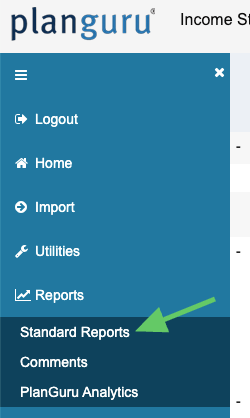
- Within the Scenario you would like to create a Report from, go to Standard Reports in the left navigation.
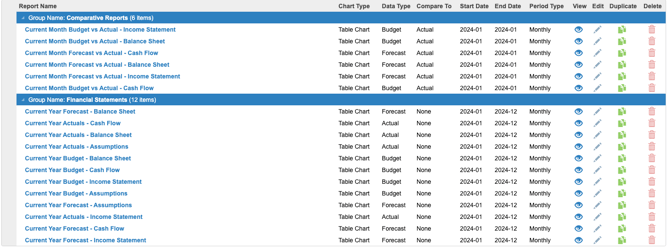
- Once in the Report Builder, click the green Add Report button in the top-right corner.
- Enter a Report Name.
3. Organizing Reports into Report Groups
Reports can be organized into Report Groups for easier navigation.
Examples:
- Financial Statements
- Board Reports
- Forecast Reviews
- Budget Packages
If a report group already exists, select it from the list.
You can also create a new report group by typing directly into the field.
4. Selecting the Report Type
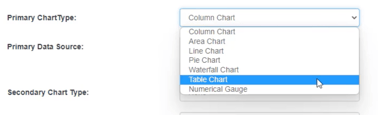
Under Primary Chart Type, choose how the report should display.
Available options include:
- Column Chart
- Area Chart
- Line Chart
- Table Chart
For traditional financial statements, select:
✅ Table Chart
5. Choosing the Data Source
Next, select the Primary Data Source.
Click the ➕ Plus Sign to open the data source selector.
You can choose:
- Entire Income Statement
- Entire Balance Sheet
- Entire Cash Flow Statement
- Assumptions & KPIs
- Specific Sections
- Individual Accounts
For this example:
- Select the entire Income Statement
- Check the top-level box
- Click Done
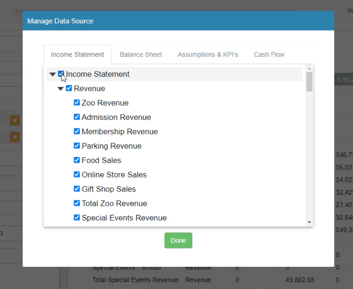
As you make selections, the Report Preview on the right updates automatically.
6. Selecting the Data Type
Choose which dataset to report on:
- Forecast
- Archived Budget
- Actual Results

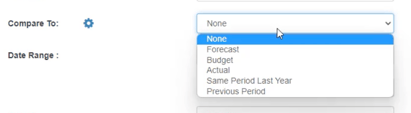
7. Using the Compare To Option
The Compare To feature allows side-by-side comparisons such as:
- Budget vs Actual
- Current Month vs Prior Month
- Forecast vs Historical Results
8. Setting the Date Range
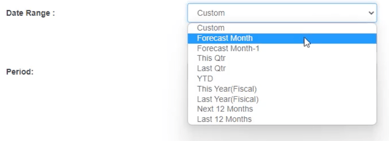
Use the Date Range dropdown to define the reporting period.
Available options include:
- Current Month
- Current Quarter
- Full Year
- Custom Range
Custom Date Ranges
Selecting Custom allows you to:
- Choose specific months
- Span multiple years
- Create completely flexible reporting periods
9. Choosing the Reporting Period Format
Next, select how the data should be grouped within the Period dropdown:
- Monthly
- Quarterly
- Half-Year
- Annual
10. Reviewing the Report Preview
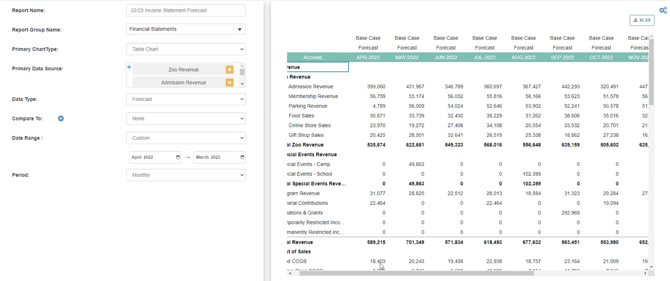
As your settings are configured, the report preview updates automatically.
In this example, the preview now shows:
- Full Income Statement
- April through March
- Monthly forecasted data
11. Additional Table Formatting Options
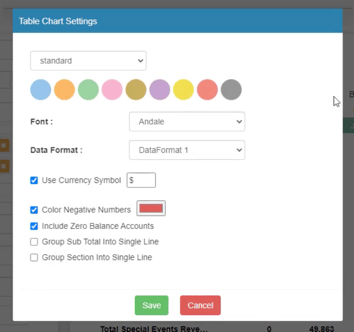
Before saving, you can customize additional formatting settings:
Table Chart Settings
Adjust:
- Fonts
- Number formatting
- Currency symbols
- Colors
Grouping Options
You can simplify reports by grouping:
Group Subtotals into Single Lines
Example:
- Combine all Revenue accounts into one subtotal line
Group Entire Sections
Example:
- Show only “Total Revenue” instead of detailed revenue accounts
12. Saving or Exporting the Report
Once satisfied:
- Click Save
- Choose one of the following:
- Add Another Report
- Open Report Viewer
- Return to Reports List
Your report will now appear in the selected Report Group.
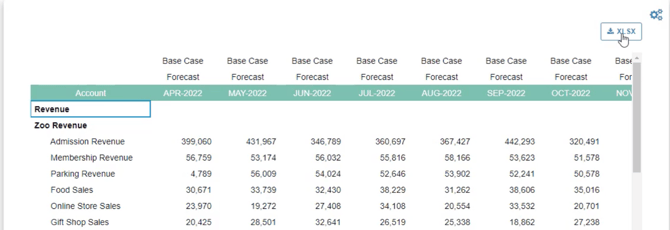
13. Exporting to Excel
All financial statement reports can also be exported to Excel for:
- Additional formatting
- Custom presentation layouts
- Offline sharing
- Further analysis
14. Creating Balance Sheet & Cash Flow Reports
Repeat the same process to create:
- Balance Sheet Reports
- Cash Flow Statement Reports
Simply change the Primary Data Source during setup.